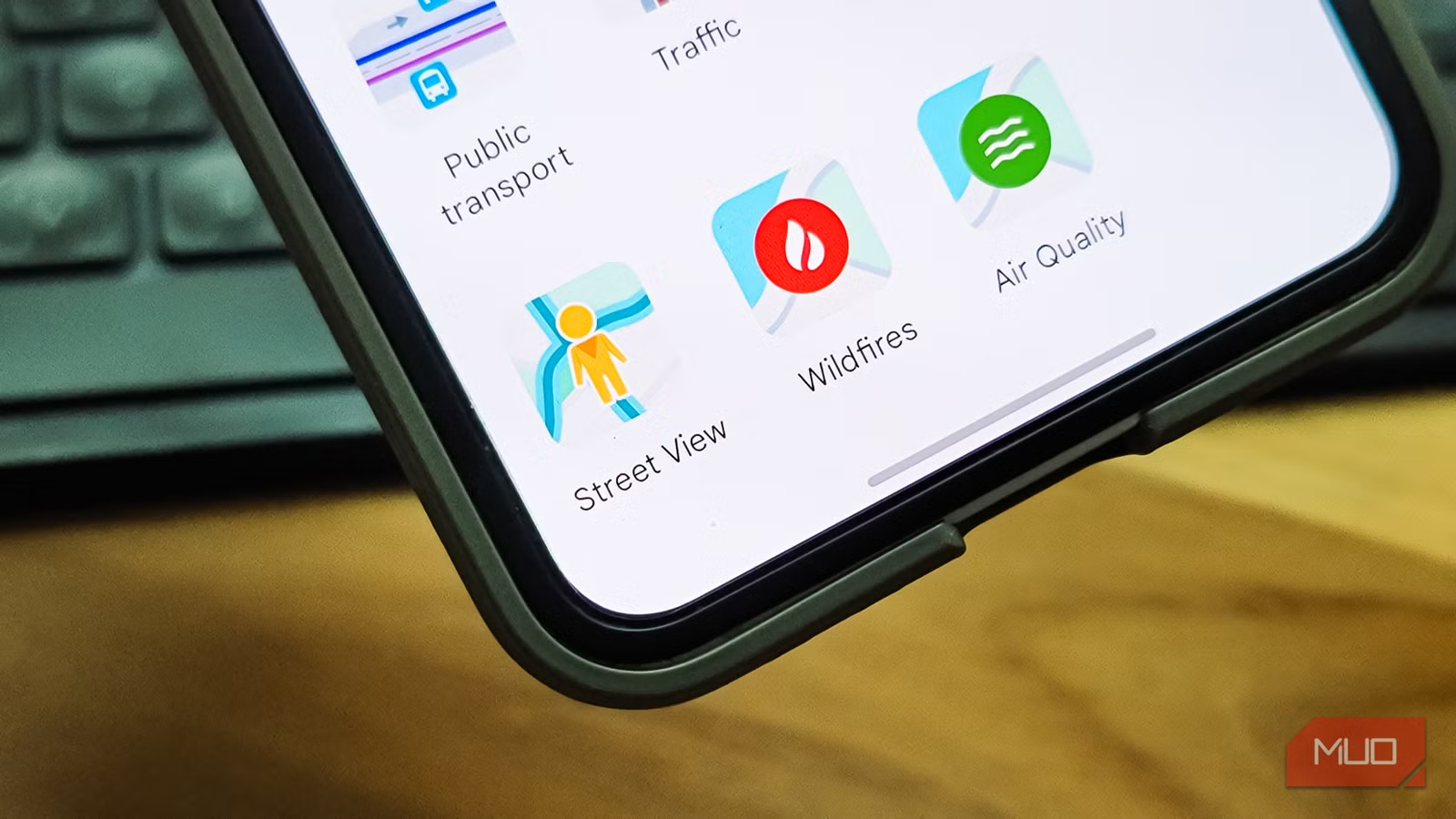
Google Maps has been my default navigation service for years now, and for the most part (except for one day when it literally guided me to someone’s backyard), it’s been reliable. While the default settings work for most people, Google Maps has evolved to offer a lot more than just basic navigation.
You can check the traffic status before leaving, use navigation gestures for one-handed use, and even navigate in incognito mode, but only if you know where to look. These aren’t groundbreaking changes on their own, but together, they’ve made my daily commute noticeably faster during peak hours.
Using Street View to find parking
A virtual drive-through before the real one
One of my favorite tricks in Google Maps has nothing to do with navigation itself. Before heading to a dense part of the city, I open Street View and virtually scout the area for parking. If you’ve ever driven into a narrow lane only to realize there’s nowhere to stop, you know the frustration.
What I do is drop into Street View near my destination and look for wider adjoining roads or open spaces. I check for visible parked cars, marked bays, or stretches of road wide enough to safely pull over. It’s like doing a dry run without leaving home.
This has saved me from circling blocks multiple times, especially in older parts of the city where the navigation pin drops you on a lane that can barely fit one car. I usually shortlist two or three fallback streets and decide my parking strategy before I even start the engine.
That said, not everything about Street View is great. The same imagery that helps you find parking also shows a surprising amount of detail about people’s homes, which is worth being aware of if privacy matters to you.
Traffic map layer
Color-coded congestion that actually saves time

The traffic layer is one of those features I used to glance at and ignore. Now it’s the first thing I check before leaving. When you enable it, Google Maps overlays color-coded lines on roads to show how fast vehicles are moving in real time. Green means traffic is flowing normally, yellow and orange indicate moderate congestion, red means heavy delays, and dark red means you’re looking at near-gridlock conditions.
Google builds this data by aggregating anonymized location and speed information from millions of smartphones, combined with feeds from traffic management centers and road sensors. It compares current speeds against historical patterns for that time and day, which is how it detects unusual slowdowns.
So, before I leave for work or a trip, I zoom out, check whether my usual route is green or has red patches, and decide whether to leave earlier or pick an alternate road. During navigation, Maps often suggests detours automatically when it detects a big delay ahead, but having already scanned the traffic layer gives me a head start. For photographers planning scenic drives or golden-hour shoots, this is also a great way to avoid getting stuck in traffic.
The one caveat is that coverage is best on major roads and in urban areas. So, minor rural roads may show no traffic coloring at all.
Incognito mode
Navigate without leaving a trail

Incognito Mode in Google Maps is something I started using recently, and it’s been surprisingly useful. When you turn it on, your searches aren’t saved to your Google account history, the places you navigate to don’t appear in your recent list, and your Location History stops updating for that session.
I use it mostly to keep my commute model clean. If I’m taking a one-off detour or driving somewhere unusual, I don’t want that trip messing up my usual route suggestions and ETA predictions. It’s also handy when you’re visiting a place you’d rather not have show up in your “Because you visited...” recommendations.
One thing to keep in mind is that Incognito Mode doesn’t make you invisible. Your ISP and device-level location services can still track your activity. It only controls what Google Maps itself logs to your account. For better privacy, you’d need to turn off Location History and restrict location permissions in your phone’s settings.
Navigation gestures
Faster control without hunting for buttons

Google Maps supports a set of touch gestures that let you zoom, tilt, and rotate the map without tapping tiny on-screen buttons.
The most useful one for me is the one-handed zoom. You double-tap and hold, then swipe up to zoom out or down to zoom in. It’s precise and doesn’t require two hands, which is exactly what you need when your phone is mounted on the dashboard. A regular double-tap zooms in quickly, and tapping once with two fingers zooms out.
Two-finger gestures offer even more. Twisting two fingers rotates the map to align with your actual facing direction, swiping up with two fingers tilts the view into a pseudo-3D driving perspective, and swiping down flattens it back to 2D.
There’s also a useful swipe on the bottom route banner during navigation. Pulling it up shows upcoming turns, lane guidance, and ETA details in one place. On bumpy roads or when the phone is at arm’s length, these gestures reduce the precise taps you’d otherwise need, which is both faster and safer.
Offline maps are a lifesaver
Download before you disconnect
Google Maps’ offline mode has saved me more times than I can count. Whenever I’m heading somewhere with patchy network coverage, I download the map area ahead of time. It’s also very easy to download the maps. While you’re still online, open Google Maps, zoom to the area you need, type ok maps in the search bar, confirm the highlighted region, and download it.
What most people don’t realize is that offline maps aren’t just static images. They work with actual navigation, and you can manage or delete them later from Menu > Offline maps. For travel, I pair offline maps with Saved Places. You save a location to a list, add a note about why it’s worth visiting, and those pins stay visible even on downloaded maps after a restart.
If you’re into hiking or off-road trails, though, Google Maps often falls short. The trail coverage just isn’t there. For those situations, apps like Maps.me let you download small regional map files that include footpaths and trails Google doesn’t bother with.

- OS
-
Android, iOS
- Developer
-
Google
Google Maps is a web-based mapping service that provides detailed geographic information, imagery, and real-time navigation for driving, walking, cycling, and public transit.
Making Google Maps is more useful than you think
None of these settings is hidden behind some secret menu, but they are easier to miss since the default Google Maps setting works so well. But the difference is noticeable. Scanning the traffic layer before leaving, pre-scouting parking with Street View, and using gestures instead of fumbling with buttons have collectively shaved real minutes off my daily drive.
Some people prefer to skip Google Maps entirely and switch to an alternative, and I understand the appeal. But for me, the answer wasn’t a different app. It was using the same app better.