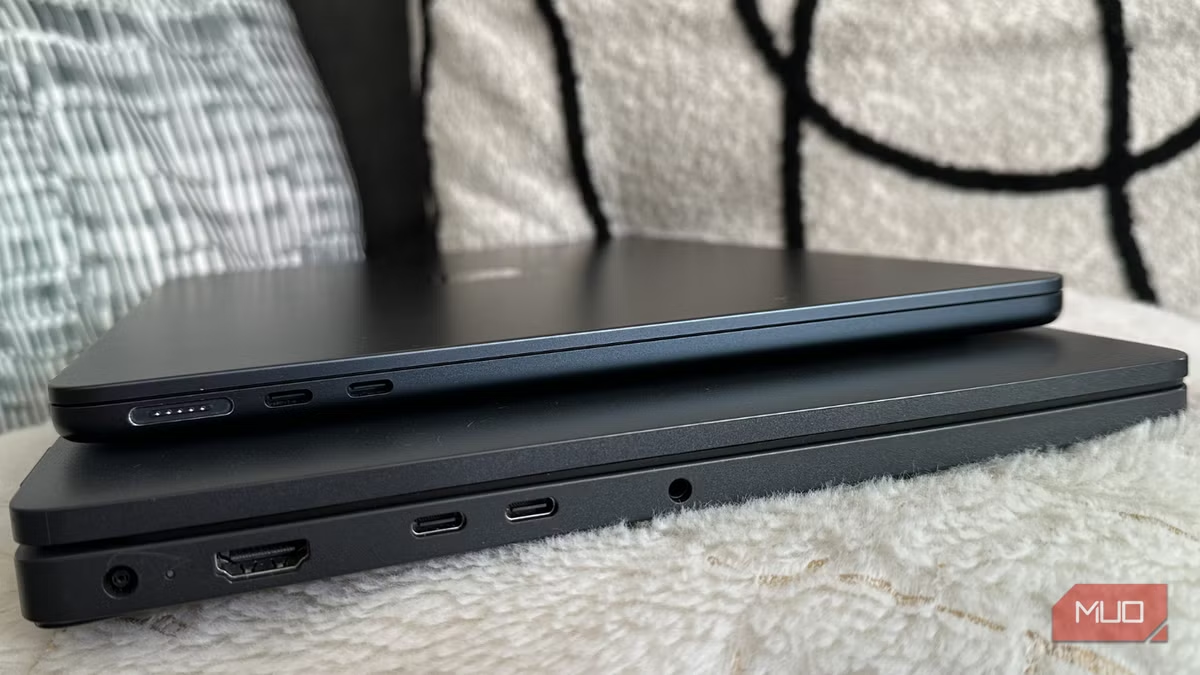
Most ports on your laptop have a clear purpose. An HDMI port connects to a display, a USB-A connects to peripherals, and a headphone jack takes care of the audio. Modern laptops have at least one USB-C port, and it might be a Thunderbolt port on some machines. Unlike the other ports, USB-C or Thunderbolt ports are built differently. Many users often use these ports to charge their laptops or plug in their phones. If you also do the same, you’re missing out on a big opportunity.
USB-C and Thunderbolt ports can do a lot more than just charging and data transfer. In fact, it can power up an entire workstation from a single connection. If you aren’t using the USB-C port to its full potential, you’re probably wasting the most useful and versatile port on your laptop.
What makes the USB-C or Thunderbolt port special
It’s a game-changer
You might think that USB-C is just another port on your laptop. In reality, the technology behind the USB-C connectors makes them special and different. Unlike older USB ports that could handle only one or two tasks at a time, USB-C connectors are designed with a huge focus on versatility. Depending on the hardware, USB-C can support fast charging, high-speed data transfer, video output, and connection to multiple devices.
Thunderbolt ports take this functionality even further. It uses the same USB-C connector but supports higher bandwidth and expanded capabilities. (USB 3.2 up to 20Gbps; USB4/Thunderbolt up to 40Gbps.) They can handle high-speed storage devices, multiple 4K displays, and powerful docking stations while still powering your laptop.
The real advantage of using a USB-C or Thunderbolt port is convenience. You don’t need to plug multiple cables into different ports. Instead, you can run most of your setup via a single USB-C or Thunderbolt connection.
How you’re probably wasting this port
Common mistakes that keep the port from shining

Most users never experience what USB-C and Thunderbolt ports are truly capable of. In many cases, users make some common mistakes that limit the functionality of these ports.
One of the most common mistakes is choosing the wrong cable. It’s worth knowing that not all USB-C cables are the same. Some USB-C cables support only basic charging speeds or low-speed data transfer, while others support faster charging, high-speed data transfer, and video output simultaneously. When you use a cheap or low-quality cable, it can limit what your USB-C port is actually capable of.
Many users rely on inexpensive adapters that offer limited functionality. A budget USB-C hub might feel like a tempting option, but it might only support basic connections. You will miss out on features like fast data transfer and high-resolution video output. Cheap USB-C adapters and hubs also have safety drawbacks.
A lot of users treat the USB-C/Thunderbolt port like a regular USB connector. They would plug in a phone cable or an occasional accessory, but never explore what else that port can actually do. As a result, the most powerful port ends up being used for the simplest tasks, like charging and data transfer between devices.
How to unlock the true power of USB-C/Thunderbolt port
What the port can really do
Once you start using your USB-C port properly, it will transform the way you use your laptop. There are several ways to take advantage of it. Let’s discuss some of the most practical ones:
Simplify your entire work setup with a dock
If you work with multiple external devices, this is the best way to take advantage of your USB-C or Thunderbolt port. Connect a USB-C hub or a Thunderbolt dock and transform your workspace in no time. Instead of plugging separate cables for a keyboard, monitor, and storage drive, you can use a dock and connect all these devices with a single cable. It will reduce unnecessary clutter on your workstation. You have to plug in a single cable, and it will connect your entire work setup. This is especially useful if you switch between multiple devices while working on the go.
Work with multiple monitors using a single cable
Most laptops support video output through their USB-C and Thunderbolt ports. If the port supports DisplayPort Alternate mode or Thunderbolt, it can transmit video signals to an external display. That means you can connect your laptop to a smart TV or a monitor with a single cable. With a compatible dock or daisy-chaining method, you can even connect multiple displays with a single port. If you work with long documents, spreadsheets, creative applications, or development tools, an additional display can take your productivity to a whole new level.
Improve your workflow with high-speed external storage
If you work with large video files or game libraries, connect a high-speed external storage drive to boost your workflow. It will offer faster data transfer rates of 10 to 40Gbps, depending on whether you’re using a USB-C or Thunderbolt port. This is particularly helpful on laptops with limited internal storage capacity. If you want to edit a 4K or 8K video, you can do it directly from the external SSD rather than moving those heavy files to your laptop. You can store game libraries, transfer images, or run your work files without filling up your laptop’s storage.

7 Surprising Devices That Work With Your Monitor’s USB Port
Did you know that your monitor and its USB port could be this useful?
One port, endless possibilities
So you see, the USB-C port might look simple, but it’s one of the most powerful connections available on modern laptops. When you use the right cables and accessories, it can power up your workstation and simplify your everyday setup. Now that you know the capabilities of USB-C and Thunderbolt ports, stop treating them like a regular connector. Once you start using it properly, you will surely wonder how you worked without it for so long.