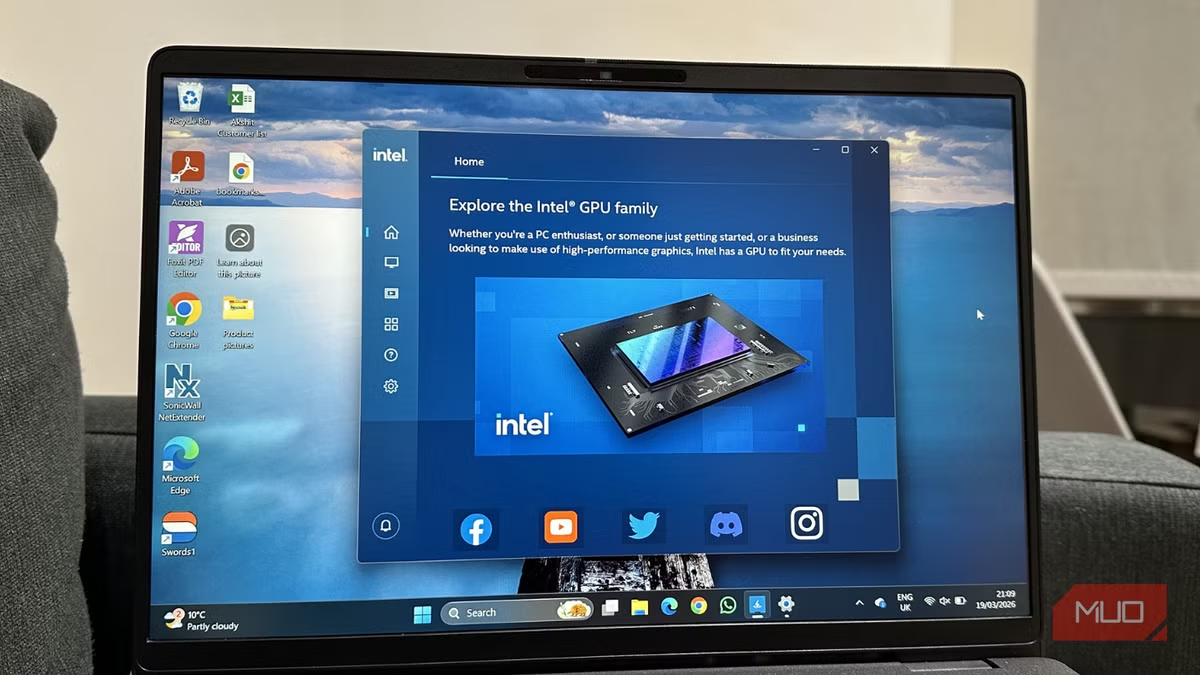
For the last few months, I strongly felt that something was not right with my PC. On paper, my machine was more than capable. And it’s not even that old to throw such a low performance. My PC had a solid GPU and RAM. Also, it did not have any obvious performance bottlenecks. In reality, my PC was stuck in low-performance mode. Even my everyday tasks like video editing and multitasking between apps felt sluggish. My PC wasn’t broken, but it felt underwhelming.
Like most users, I decided to check the usuals first. So, I closed background apps, updated drivers, uninstalled unnecessary apps, and even tweaked some in-app settings. But I couldn’t find anything. I blamed poor optimization and Windows quirks for this behavior. One day, I decided to dive deeper. And one setting that I never noticed turned out to be the real problem.
One setting that changed everything
Power Mode
Your Windows PC offers a setting called Power Mode or Power Management mode (or something similar). This option is tucked deep inside the system settings, and that’s why most users miss it easily. By default, the Power mode is set to Balanced or Best Power Efficiency. It optimizes your system and controls how it consumes power. The Balanced mode automatically underclocks CPU and GPU usage for tasks that don’t require full power. This is to prevent excessive heat and battery drain problems. This sounds ideal, right? But these options are designed with a focus on efficiency, and not on performance.
When you try to launch a game or start a demanding task, the GPU doesn’t jump to its full power right away. It gradually ramps up the performance. This delay leads to inconsistent frame rates and lower peak performance. This eventually gives you the feeling that your machine isn’t as responsive as it should be.
Best Performance or Maximum Performance mode (you might see a similar name) instructs your CPU and GPU to stay ready to operate at higher speeds whenever it’s needed.
Satisfying and surprising

The moment I changed this setting, the difference was noticeable. It made my machine faster and snappier. Previously, some games offered an inconsistent experience. I experienced dropping frames and random stutters during fast-paced action. Now, the frame rates are more stable, and those random stutters which I had gotten used to are completely gone. Besides improving gaming, this setting also brought some other improvements.
My video editing and playback are more responsive. And my everyday tasks that used to lag for a second are now catching up instantly. What surprised me the most wasn’t just higher performance than before; it was consistency. I feel my GPU no longer hesitates or ramps up late when I throw my tasks at it. It would easily do what I expected it to do. I felt as if I had finally unlocked the performance that my PC was capable of.
How to check and fix this setting on your PC
Unlock the true performance
You can easily adjust the power mode on your Windows PC in a few seconds. You don’t need any technical expertise for this. Here’s what you need to do:
- Head to Settings on your Windows PC.
- Click on System from the left sidebar.
- Navigate to the Power & battery section.
- Click on Power Mode.
- Select Best Performance from the drop-down menu.
I’ve chosen Best Performance for Plugged In and Balanced for On battery. For days, I plan to indulge in gaming sessions from my couch. I switched to Best Performance on battery, only for that time. I do this to avoid unnecessary battery drain.
It’s worth knowing that Best Performance mode delivers peak performance, but it also generates more heat. If you’re using a super old machine or your laptop is overheating, you might have to revert to the Balanced mode.
Other hidden settings that can hurt GPU performance
More possible bottlenecks

Once I found this setting, I was curious to discover what else could be quietly affecting the performance of my PC. I found out that app-specific settings can also override your GPU behavior. If you’ve got a system with integrated graphics, some programs might not use your dedicated GPU properly. When this happens, you don’t experience the peak GPU performance.
You must also keep an eye on driver updates. Sometimes, they can reset the key settings. This will quietly revert your system to a lower performance mode. Then we have background apps like recorders and monitoring tools that consume GPU resources without obvious signs.

I finally unlocked the true GPU performance on my PC
What surprised me the most was how easy it was to overlook such an important setting. I spent months assuming that my GPU wasn’t performing at its peak. In reality, it was being held by a single setting designed to maximize efficiency.
It was also a reminder that default settings don’t mean the best. Sometimes your machine is much more capable; you just have to unlock it. If your PC is also underperforming, don’t jump directly into upgrading the hardware. There could be a fix hidden inside a simple setting that you never bothered to check.