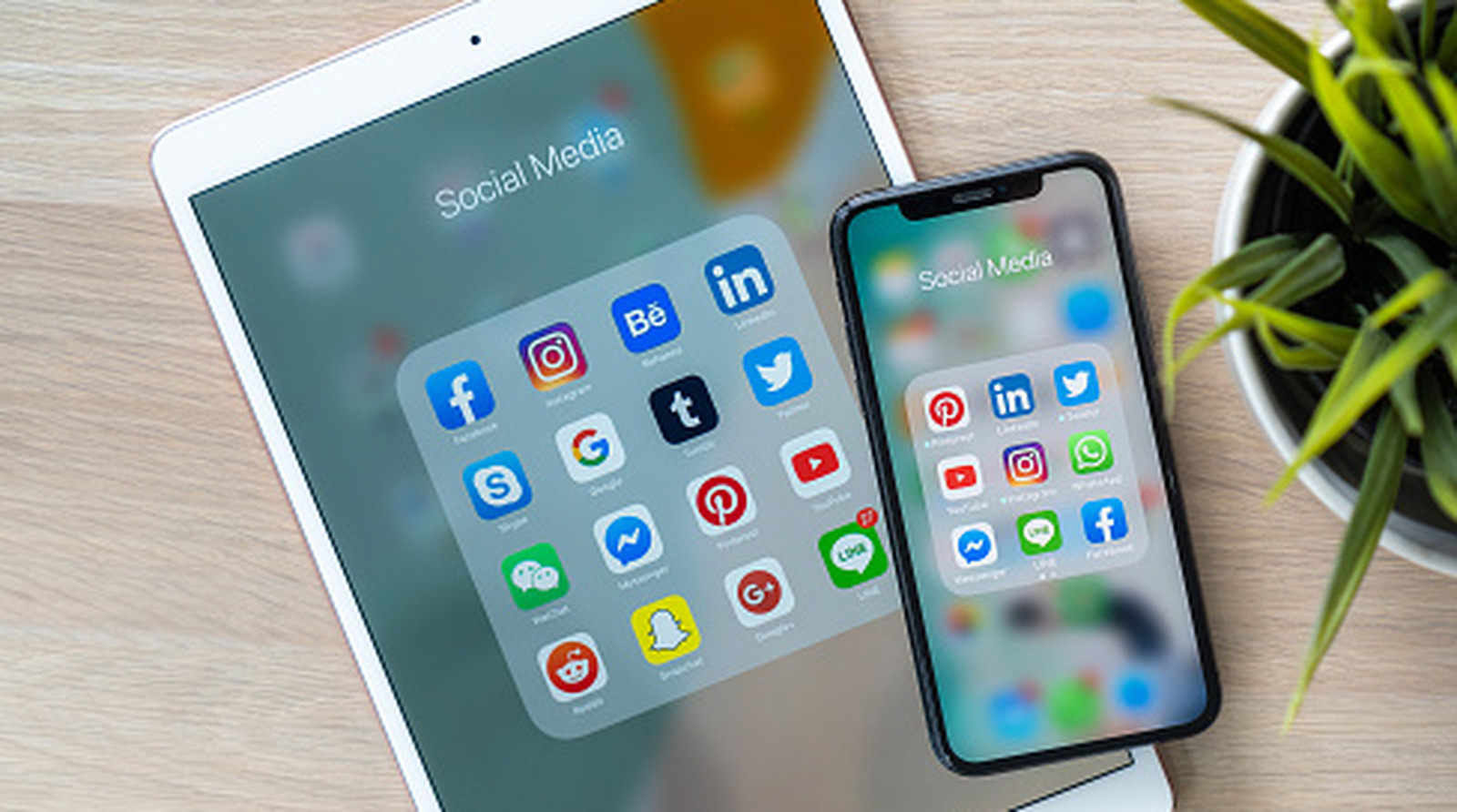
To the untrained eye, it may seem that the iPad is just a very large iPhone. In the past, they both used the same operating system “iOS” and — again, to the untrained eye — seemed to be the same sort of device, just delivered in different sizes. In the year 2019 Apple publicly split the operating system in two, leaving iOS for iPhone and iPadOS for iPad — making clear that these were meant to be two distinct ecosystems.
Since the iPhone is designed as a primary device and can do a lot of things the iPad can’t — like using the Apple Wallet app with NFC for contactless payments — it may seem like the iPad is the inferior device. But — despite the fact that it’s extraordinarily rare that a person would be in a situation where they’re deciding to buy either an iPad or an iPhone — today we’re looking at a number of features which exist only on the iPad (and do not exist or are given significantly different sets of abilities in the iPhone).
iPadOS has come a long way since its official 2019 release, maturing into a powerful platform that makes the iPad (almost) good enough to replace a Mac. Gone are the days when the iPad was (effectively) a larger version of Apple’s smartphone. Today the iPad is its own island, complete with features that either do not or cannot exist on the iPhone.
Use Stage Manager and Windows Apps
Bigger screens mean more space to do more things. One could argue that the iPhone Plus or Pro Max has enough space to open more than one app at a time. It’s certainly something you can do on Android; split-screen view on Samsung devices has been around for a while. In Apple’s ecosystem, though, mobile split-screen, multi-app functionality is reserved for tablets.
The best multitasking feature is one that arrived with iPadOS 26: Windowed Apps. It works very similarly to a Mac, with the same traffic light buttons, the same ability to resize windows by grabbing and dragging edges, and the same function of dragging a window’s title bar to move it. iOS 26 also introduced the menu bar, which you can access by swiping down from the top of the screen. Since this is a touchscreen, there are touchscreen benefits, such as flicking left or right to fill the app on one half of the screen.
If you don’t like the new windowing system, you can try Stage Manager or Split Screen Mode. Stage Manager is great if you want to work with clusters of apps and switch between them rapidly. Split Screen Mode was the default prior to iPadOS 26, which thankfully didn’t kill it off entirely. You can choose your preferred app management mode — the default iPad experience with full screen apps and optional split-screen, Windowed Apps, or Stage Manager — by going to Settings > Multitasking & Gestures.
Use Slide Over
Need access to a separate app, perhaps a document you’re referencing for brief spurts while you type something out in an app like Ulysses or Bear? The iPad-exclusive feature “Slide Over” is an extremely useful feature for these situations. It effectively places the app in a digital drawer on the side of your display — whenever you need access to it, all you have to do is slide it out, do what you need to do, and then slide it back in.
Fun fact: After revealing this feature with iOS 9 (for iPad only), it was nixed (briefly) in iPadOS 26. An immediate uproar from iPad users who’d been using the app for years resulted in Apple bringing the feature back in iPadOS 26.1.
To put an app in Slide Over mode, press and hold the traffic light icons until you get the Enter Slide Over option, or drag it over the arrow icon on the screen edge where you need it. Bear in mind, Slide Over can easily be relocated to the opposite screen edge, resized, or have the app it’s currently showing replaced.
Work With Apple Pencil
Many of the most major creative input apps — illustration, coloring, sculpting, and so forth — have some manner of official Apple Pencil support. Once you’ve used an Apple Pencil with an iPad, it’s difficult to consider going back to using your fingers. It’s a joy to use. Unfortunately (and at the same time sensibly) iPhone has Apple Pencil support (yet).
You could potentially use a capacitive stylus with an iPhone, but Apple’s not yet (and may never) shown a sign that they’ll be releasing an iPhone that works with their iPad-exclusive writing and creative tool.
Having said that, not all models of Apple Pencil are equal, and not all of them work with every iPad. The iPad Pro M4 and iPad Air M2 redesign changed the camera orientation and made all previous Apple Pencils incompatible with them, and conversely makes the newest, best Apple Pencil Pro incompatible with older models. See the full Apple Pencil compatibility chart to see which one works with what. Be 100% sure you buy the right Apple Pencil for your iPad.
Refine Handwriting in Apple Notes
iPadOS 18 brought one of the iPad’s most brilliant features, and it received only a minor mention during WWDC: the ability to refine your handwriting. What this does is quietly learn from your handwriting whenever you write something with the Apple Pencil in a supported app, like Apple Notes. Then your iPad polishes your writing, making it cleaner and more legible, without depriving it of its own distinctive look and feel that makes it yours.
In Apple Notes tap the three dots menu and switch the Auto-Refine Handwriting option to on (green).
The feature works quickly and unobtrusively as you write things out; you’ll see your words morph and warp just a tiny bit a couple of seconds after writing them, so they stay more consistent and remain on the same line. But where it really shows its brilliance is in what you can do with that text afterwards. Refine Handwriting basically treats your written words as if they were normal text, meaning it can copy them, paste them, rearrange them, and even spell-check them — all without you having to rewrite them, since it makes the change in your handwriting. Rather than selecting text and hitting delete, you can also scratch it out and the words will disappear.
Browse The Web In Desktop Mode (Without Zooming)
Using a desktop-optimized website on a small mobile screen is a nightmare. Thankfully, most websites you use automatically load a mobile version these days. On the iPad, with all that extra screen real estate, though, websites load in their complete, glorious desktop mode by default. As proof of this, you have to manually request the mobile version. Internet browsing on the iPad is close to indistinguishable from browsing with Safari on a MacBook, perhaps even better with the touch interface making scrolling and zooming more interactive and smooth.
In a similar vein, many iPadOS apps feel closer to their desktop variants than to the iPhone version. Writing apps like Ulysses and Bear have a proper toolbar on the side next to the editor, rather than the user having to choose one or the other on an iPhone.
Run Final Cut Pro and Logic Pro (and other iPad-exclusive apps)
One distinct hardware advantage that iPads have over iPhones is (aside from the iPad and iPad Mini) significantly more processing power. The latest and greatest iPad Pro M5 packs a chip that’s basically identical to the baseline M5 in a MacBook. This new iPad Pro (M5) has more power than ever before — and some of the same old problems — and access to some nearly-desktop-grade apps.
Two popular examples on iPadOS are Final Cut Pro and Logic Pro, neither of which is available on the iPhone. You get enough screen space to do some actual professional work plus extra benefits like Apple Pencil support.
That’s not to say the experience is ideal, or a one-for-one copy of the desktop experience. For years, the iPadOS version of Final Cut Pro and the Mac version have had significant differences between them. The same extends to other pro-oriented apps like Photoshop on iPadOS, when compared to its desktop version. We’re not quite at the point where you can use the iPad as a laptop replacement, but we are (as always) closer than ever before.
Use Sidecar with a Mac
Two-screen setups are unbeatable for productivity work. Command-Tabbing back and forth between apps on a single screen gets tedious fast. Don’t worry if you don’t have an extra external monitor, though, because your iPad can suffice with Sidecar. Activating it takes only a couple of clicks; simply go to the Screen Mirroring options in your Control Center on the MacBook and choose your iPad as a mirrored or extended display.
Latency is incredibly minimal under the right circumstances — this is arguably the best way to have a portable two-screen setup when traveling. If you really wanted to, you could make this a semi-permanent setup by plugging your iPad into your Mac so it doesn’t die.
Sidecar is absolutely packed to the gills with useful features. For example, hover your mouse over the green traffic light button and then transfer the window to your iPad’s Sidecar display with “Move to iPad.” The iPad keeps a sidebar of common shortcut keys, too, like Control, Option, and Command to facilitate common shortcuts without reaching for the keyboard.
Some touch gestures work too, such as two-finger scrolling and the three-finger copy-and-paste. Your Apple Pencil is also supported, meaning you can technically use the Apple Pencil on a Mac this way to get better control over, say, digital paintings in an app like Apple’s Pixelmator Pro. At any moment you can pause your Sidecar session to dip back into iPadOS to access your iPad apps.
While it doesn’t always work quite as smoothly, you could also use an app like Duet to connect your Android or iOS device to your Mac or PC, too.
Use Universal Control
Sidecar turns your iPad into a miniature external screen for a MacBook, but you’re not actually using iPadOS. Of course, you’re just wirelessly transmitting an image to it. So what if you could control both a MacBook and an iPad — with their own distinct operating systems — with one mouse and keyboard? That’s what Universal Control promises.
All you need to do is make sure both devices are fully supported (and updated) and sign both into the same Apple Account. On Mac, enable it in Settings > Displays > Advanced > “Allow your pointer and keyboard to move between any nearby Mac or iPad.” Do the same on iPad by going to Settings > General > AirPlay & Continuity > Cursor and Keyboard. These may already be active by default. Bear in mind, you can’t do this for more than three devices (a mix of iPads and MacBooks) at a time.
Now the fun begins. As long as your iPad is unlocked, you should be able to move your cursor to the screen’s edge and keep going. On your iPad, you’ll see your cursor trying to break free of a sidebar with a Mac icon. Keep going and your mouse cursor will flow smoothly into the other device.
Your keyboard should also work as long as the mouse is on the iPad screen, and you can drag and drop some content between devices seamlessly. Ideally this should require no re-pairing of your mouse and keyboard, and introduces minimal latency. Think of this as a nifty alternative to Sidecar, except now you use iPadOS as is rather than extending your Mac display.
Use Four and Five-finger Gestures
For the most part, you only interact with your iPhone’s screen with one or two fingers at a time. At most, you might do that three-finger pinch to copy and paste things across devices. Anecdotally, that and the iPhone’s other productivity gestures (like double-tapping with three fingers to undo) take a few tries to get working, a likely unavoidable outcome when you’re on a small screen that just isn’t conducive to complex multi-fingered touch gestures. The iPad is. Head to Settings > Multitasking & Gestures, and you’ll find a couple of iPad-exclusive options in the Gestures section.
The big ones are four- and five-finger app switching. Note, all of these gestures work with either four or five fingers. If you’re in an app and want to go to the Home screen, make a pinching motion. If you want to switch over to the next app in line, swipe left or right rather than doing the one-finger swipe on the bottom bar. The App Switcher can be brought up with a pinch and hold.
Another trick up the iPad’s sleeve is swiping a finger from a corner. This is reminiscent of macOS’s hot corners, allowing you to perform a quick action without leaving the app by swiping a corner. You can quickly take screenshots or make a new note, but bear in mind there are some limitations. It’s restricted to an iPad and Apple Pencil combination in Windowed Apps mode, so unless you’re willing to change back to Full-Screen Apps mode, it won’t work. Luckily, taking a screenshot is as easy as pressing the power button and volume up, so you’ll only be missing out on the quick note feature.
Use Floating Keyboard
The iPad’s bigger keyboard is both a blessing and a curse. You’re less likely to make mistakes like you do on an iPhone since it’s so big, but typing on it is frankly harder since you can’t really type on it like a physical keyboard. To solve this, you could instead shrink the keyboard into a floating window.
Similar to the zoom gesture, you pinch your fingers on the keyboard to reduce it, or press and hold the keyboard icon with a downward arrow, then select the “Floating” option. Now you have a roughly iPhone-sized keyboard that could be a lot easier to type on — albeit one-handed. Pro tip: the way you move the keyboard is by holding the three-dot button and then dragging.
Naturally, this only half-solves the problem of a too big keyboard since now you’re limited to one-handed typing. Most people likely type with two thumbs while holding their iPhone, so there’s an option here for that sort of configuration on the iPad. Using that same keyboard icon key as before, choose Split. Or, spread your fingers on the keyboard (a sort of zoom-in motion) and the keyboard should break into two separate halves. Now you can hold the iPad at the bottom corners and type as if you were on a huge iPhone, although this may take some getting used to. Unfortunately, the split keyboard option doesn’t work for all iPad models, only the last few generations of iPad, iPad Mini, or iPad Air.