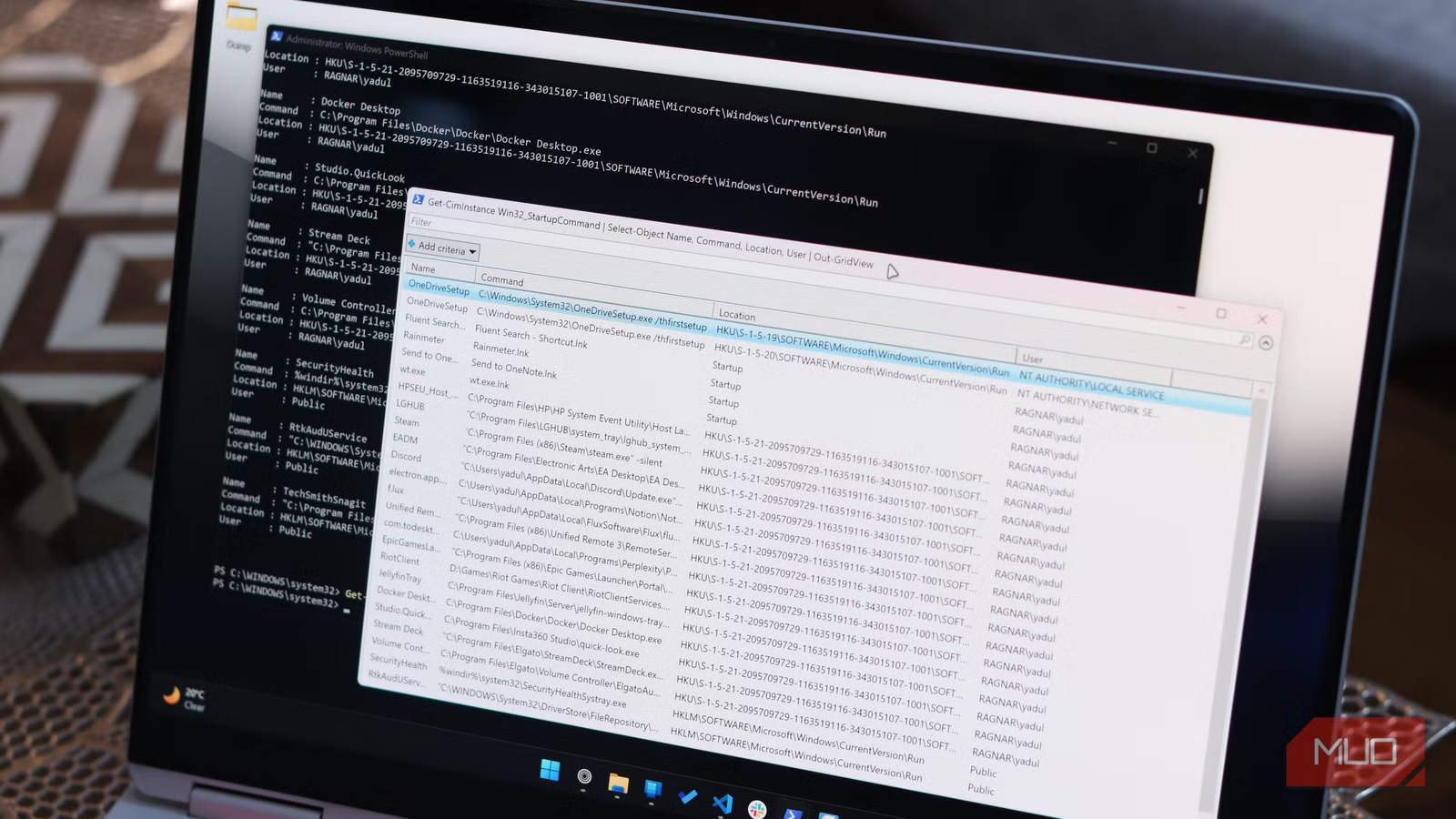
If you’ve ever opened the Task Manager to check startup apps like a responsible Windows user, I’ve got news—Windows Task Manager’s startup list lies to you. You can’t optimize your PC for faster boot times by disabling startup apps if you don’t see all the startup processes.
What Windows shows you in the Task Manager is a curated list of start apps from among the programs and services you’ve installed, not the whole picture. The real list of programs loading themselves when Windows starts is way longer, and Windows has no intention of showing it to you unless you know this PowerShell command.
The PowerShell Command for all your startup needs
A single line that digs everywhere Windows hides things
Open PowerShell, ideally as an administrator, since some of these entries require elevated access to display, and run the following command:
Get-CimInstance Win32_StartupCommand | Select-Object Name, Command, Location, User | Format-List
And that’s it. This one command will show you startup entries the Task Manager never even hinted at. If you prefer a more interactive list, swap the Format-List flag for Out-GridView to get a searchable, sortable table in a separate window. This lets you filter entries and actually make sense of the data you see.

Get-CimInstance Win32_StartupCommand | Select-Object Name, Command, Location, User | Out-GridView
Last but not least, if you want to save this list for comparisons later, to audit a system over time, for example, you can also pipe the results into a text file:
Get-CimInstance Win32_StartupCommand | Select-Object Name, Command, Location, User | Format-List > C:\startup_audit.txt
It’s a relatively easy command to use once you’ve figured out the syntax, and depending on how closely you monitor your PC’s performance, it can become a favorite very quickly. It’s also one of those Windows commands that are easy to learn but make a big difference.
It’s digging through way more than you think
Startup folders, registry keys, and everything in between
The primary driver behind this command is a WMI (Windows Management Instrumentation) class called Win32_StartupCommand, officially defined by Microsoft as “a command that runs automatically when a user logs into the computer system.” It was designed for both local use and remote management, meaning IT administrators can run it on network machines without ever touching them physically.
The class exposes eight properties for every startup entry it finds: Caption, Command, Description, Location, Name, SettingID, User, and UserID. They’re all useful, but the two you need the most are Location and User, as they tell you where exactly in the registry or file system the entry lives and which account it belongs to, respectively.
Windows has quite a few places where programs can register themselves to run at boot. The problem is, Task Manager only monitors a subset of them. This PowerShell command surfaces entries from the following Registry paths:
- HKLM\SOFTWARE\Microsoft\Windows\CurrentVersion\Run: Applies to all users on the machine. Used by most normal startup entries.
- HKCU\SOFTWARE\Microsoft\Windows\CurrentVersion\Run: Runs on a user-specific basis when a particular user logs in.
- HKLM\SOFTWARE\Wow6432Node\Microsoft\Windows\CurrentVersion\Run: Stores startup entries for 32-bit programs running on a 64-bit version of Windows.
Beyond these main paths, there are RunOnce variants of the first two keys, which are supposed to run once and delete themselves later. This mechanism is used by installers and update services, but isn’t always cleaned up as it should be. For the third path, Windows automatically handles registry redirection, but Task Manager can miss entries sitting in this node, leaving 32-bit program startup registrations effectively invisible on 64-bit systems until you go digging.

5 PowerShell commands that fix most of my Windows problems
A precise approach to everyday Windows breakdowns.
And then there are startup folders. Just like Registry keys, these are also divided into per-user and system-wide as follows:
- C:\Users[Username]\AppData\Roaming\Microsoft\Windows\Start Menu\Programs\Startup (per-user)
- C:\ProgramData\Microsoft\Windows\Start Menu\Programs\Startup (system-wide)
Any program shortcuts dropped in these folders will run when Windows boots. As you can probably guess, these folders also show up through the Win32_StartupCommand command.
And yeah, it still misses some startup times
Where things can still hide

If you thought you had uncovered all the startup secrets Windows has with just one command, you’re not wrong. Win32_StartupCommand is an improvement over Task Manager, but it doesn’t show the following:
- Scheduled tasks configured to run at login
- Windows services set to start automatically
- Autostart Extensibility Points (ASEPs)
The best option here is to use Microsoft’s own Sysinternals Autoruns tool. It covers over 200 autostart locations, including browser extensions, shell extensions, Winlogon notifications, and more.
That said, Autoruns is a separate download, requires installation, and is far more overwhelming than a simple PowerShell command. Besides, not everything Autoruns will show you makes sense to disable. Some of them are Windows or program services you need for the system to run properly.
WIn32_StartupCommand hits the sweet spot between accessibility and detail for most users who just want a realistic picture of what’s loading at startup. That is, unless you want to know every single process that Windows runs when it boots.

- OS
-
Windows
- Developer
-
Microsoft (Sysinternals)
- Price model
-
Free
Autoruns is a powerful Sysinternals tool that reveals every program, service, and hidden entry that runs automatically when Windows starts.
Run this once—you’ll see why it matters
The fastest way to clean up your boot time
The obvious reason to run this command is boot time and performance. If your machine feels sluggish at startup, entries that Task Manager fails to show you might just be the solution. Update checkers, cloud sync agents, telemetry daemons, and OEM bloatware are all culprits that hide outside the Task Manager’s view and slow your system down.

There’s also a security angle worth noting. Registry Run keys are one of the most commonly abused persistence mechanisms in malware. Running this PowerShell command periodically, saving the output to a file, and comparing it against a known, clean baseline is a quick way to spot unauthorized additions before they spiral into a larger problem. That’s why this command is one of my most-used Windows PowerShell commands.
The point isn’t to go deleting everything you don’t recognize—that’s a great way to break your OS. The point is to actually know what’s running behind the scenes on your machine. Task Manager wasn’t designed to give you that access; the terminal was.