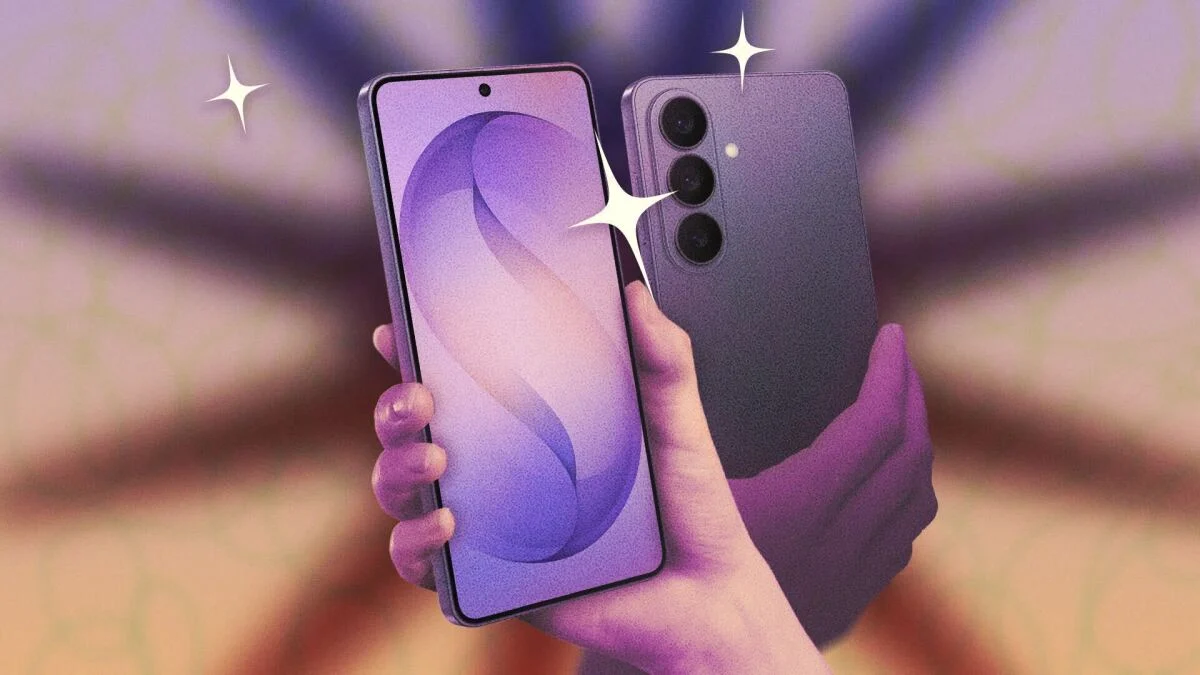
So you’ve bought yourself a brand new Samsung Galaxy S26. How do you make the most of it? The latest flagship phones from Samsung come with One UI 8.5 installed on board, and there’s plenty you can do with both the software and some of the hardware upgrades that Samsung has put in place. Here are 10 ways you can make your Galaxy S26 more useful than it is out of the box:
Use DeX to turn your Galaxy phone into a computer
I’ve covered Samsung DeX in the past: It’s a desktop interface for your phone that activates when you plug your handset into a monitor, and it means you can more or less use your Galaxy device like a PC if you hook up a mouse and keyboard.
DeX isn’t new, but with One UI 8.5 models it features up to four separate desktop spaces, which can each hold five apps—so there’s more room to work with. There are also additional options for positioning the extended display in DeX mode. To get started, head to Connected devices > Samsung DeX from Settings.
Use your Galaxy S26 as a high-quality webcam
Pixel phones have been able to double up as webcams since Android 14, and with the Galaxy S26 series, Samsung finally joins in as well. This should work on Windows and macOS: Just connect your phone to your computer via a USB-C cable, open the notification that shows on the Galaxy screen, and pick Webcam as the mode. The next time you load up an app that can utilize a webcam, the Galaxy S26 Ultra should appear as an option in the camera picker.
If you have a laptop with a built-in webcam, you may wonder why you need to use your phone as a webcam, but it’s a good option if you’re using a desktop setup which doesn’t have a webcam, or if your integrated webcam isn’t very good. A phone also gives you a lot more flexibility when it comes to the position and angle of the camera too, so this really can come in handy.
Use “Privacy Shield” to hide your Galaxy’s display from onlookers
The Galaxy S26 feature that seems to have attracted the most attention so far is the Privacy Display, though sadly it’s only available on the Ultra model. It makes it virtually impossible for anyone who’s near you to see what’s on screen, with some clever display trickery.
You’ll find the Privacy Display option under Display in Settings (it’s also available on the Quick Settings panel), and you can choose to enable it manually or have it turn on automatically (when you’re entering a PIN or password, for example). There’s also the option to only enable the Privacy Display feature for notifications on screen, as well as a Maximum privacy protection setting. This dials up the obfuscation as far as possible, but “may affect normal viewing” as well, Samsung says.
The Privacy Display setting on the S26 Ultra.
Credit: Lifehacker
Use “Inactivity restart” to automatically protect your Galaxy from hackers
Delve into the One UI 8.5 Settings page on the Galaxy S26, and you’ll find a new option under Security and privacy > More security settings. It’s called Inactivity restart, and it means your phone will automatically reboot if you don’t use it for 72 hours straight. When it restarts, it’ll be in a more secure mode than it was before. Incoming notifications and calls won’t be shown on the screen, and an unlock (via PIN, password, or pattern) will be required for the device to become usable again.
This might not sound too different to your phone simply being locked as normal, but a reboot activates what’s known as a Before First Unlock (BFU) state. This BFU state adds a few more protections to a standard lock, including the blocking of notifications, full data encryption, and the temporary disabling of biometrics.
Customize the Quick Panel to find your most-used features fast
One UI 8.5 on the Galaxy S26 series gives you more control over the Quick Panel that appears when you swipe down from the top-right corner of the screen: You can edit buttons individually as well as in groups now, and staples like the brightness and volume sliders can be resized and repositioned. You can customize the Quick Panel with the exact layout that works best for you, and include all the settings and functions you use most.
To get started, swipe down from the top right to find the panel, then tap the pen icon at the top. Use Edit on the main panel to change the shortcut buttons, and Add a control to drop in something new. You can reposition elements by tapping and holding on them, resize them using the handles around the sides, and remove them by tapping the – (minus) icons.
What do you think so far?
Use this setting to automatically switch between wifi and cellular when needed
One of Samsung’s more subtle implementations of AI can be found in Connections > Wi-Fi from the Settings page on your Galaxy S26. If you then choose Switch to mobile data with AI, you get options for intelligently switching over to a cellular network if your wifi coverage has become unstable or non-existent. It should mean fewer interruptions if you’re on the move and switching between multiple networks as you go.
Use “Audio Eraser” to reduce background noise in any video
With the Galaxy S25, Samsung introduced a feature called Audio Eraser: It meant you could isolate different sounds from the videos you recorded (such as background crowd noise, music, or someone speaking), and boost certain sounds while lowering others. That way, your videos don’t have to be ruined by background wind noise or other distractions.
With One UI 8.5 and the Galaxy S26 series, Audio Eraser gets an upgrade. It can now work in real time with any video and app you want. This implementation is simpler than it is with your own videos, but it’s effective: You get two sliders for reducing background noise and boosting voice dialog or music vocals. With a video playing on screen, swipe down from the top right corner to access Quick Settings, then choose Audio Eraser to find the sliders.

Audio eraser now works across a broader range of videos.
Credit: Lifehacker
Detect scams in real time
As I previously reported, the Pixel’s real-time scam detection technology is now available on the Galaxy S26 series. In fact, it’s built right into the Samsung Phone app. To enable the feature from the Phone app, tap the three dots (top right), then choose Settings and Scam Detection. All of the incoming audio is processed locally by Gemini, and nothing is recorded or sent back to the cloud. Scam Detection isn’t 100% accurate, but if the on-board AI thinks that the words you’re hearing match the patterns often used by fraudsters, you’ll see an on-screen message and get haptic feedback to that effect. You can then choose to end the call or stay on the line.
Use “Private album” to hide your sensitive photos
For your most sensitive photos and videos, there’s now a private album built right into the Samsung Gallery app in One UI 8.5. You can hide images and clips away without creating a separate folder for them, and you don’t even need to sign up for a Samsung account. With a photo or video open on screen, tap the three dots (top right), then choose Move to private album. A link to the album is shown if you tap the Menu button in the Gallery app, but you need your screen unlock method (such as a fingerprint) to access it.
Use “Horizon Lock” to automatically stabilize all your videos
If you’ve gone for the most expensive Samsung Galaxy S26 Ultra model, you also get access to a rather clever camera trick called Horizon Lock. It means when you’re shooting video, you can lock it to the original orientation—portrait or landscape—no matter how much you subsequently twist and turn your phone. You need to select Super Steady Video as your shooting mode to access Horizon Lock, from the Camera app. While some video stabilization was available on previous Samsung phones, this really does take it to the next level.