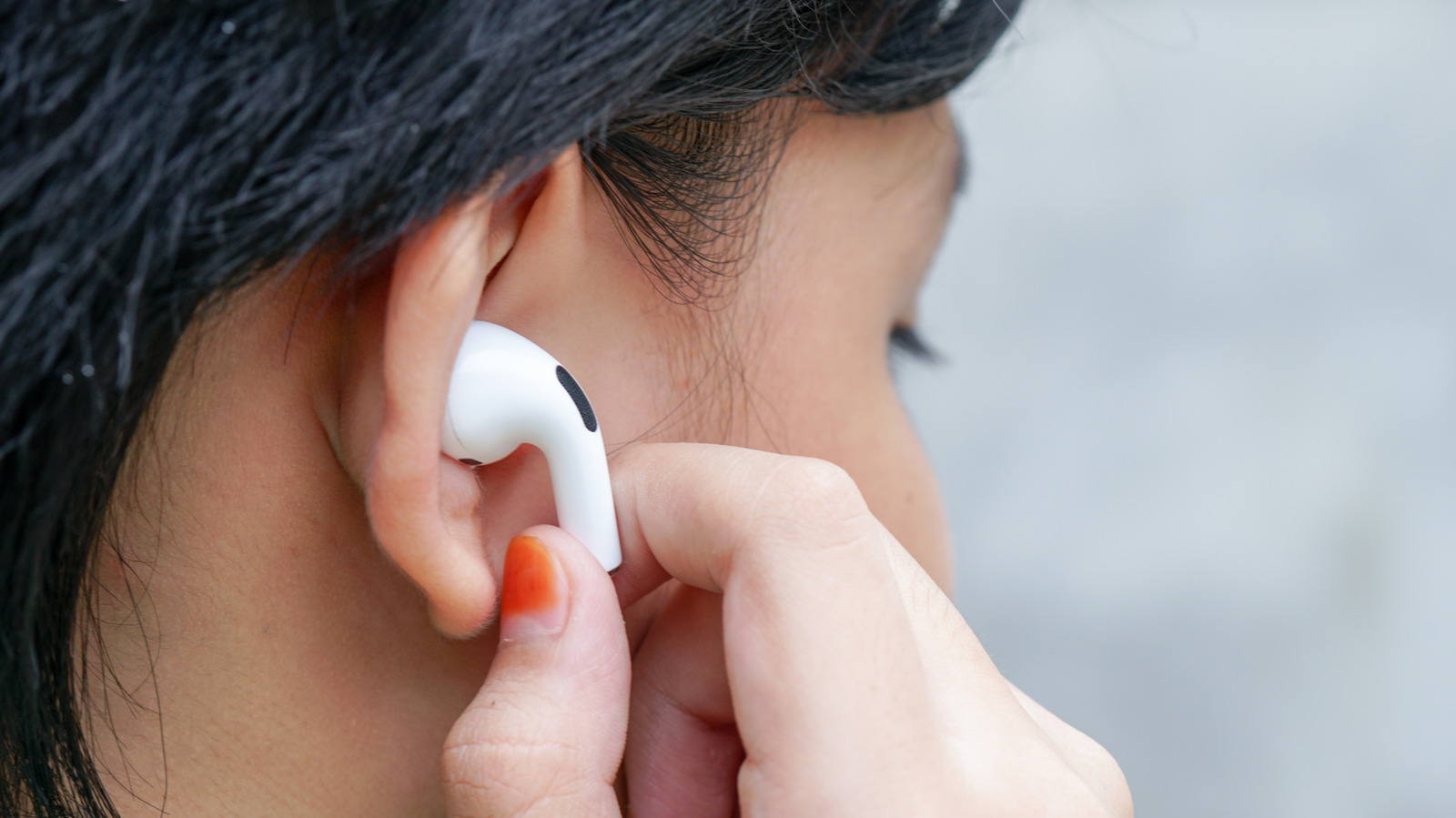
If you primarily use an iPhone or Mac, no other pair of headphones comes close to the level of convenience that the AirPods lineup provides. Despite the lack of true Bluetooth multipoint, AirPods can effortlessly switch between Apple devices as you’re using them. With the AirPods Pro 3, you get industry-leading active noise cancellation, spatial audio with head tracking, and a force touch sensor for easier playback control. Many of these features have also made their way to the entry-level models, and this is something we talk about in our review of the AirPods 4.
Even the freshly updated AirPods Max 2 have a loyal user base owing to their comfortable design, Apple ecosystem perks, and ANC performance. While sound quality is excellent as expected, the AirPods lineup is also well-known for its microphone quality. Despite the shorter stem of the AirPods Pro, the beamforming microphone does a surprisingly good job of capturing clear audio during calls. However, if you’re hearing complaints about poor audio quality from the person on the other end, it’s a good time to investigate potential issues with your AirPods’ microphone.
Start by checking to see if there’s any dust or debris covering the microphone holes on your AirPods. Now is a good time to safely clean your AirPods using isopropyl alcohol wipes. If you’re using third-party attachments with your AirPods, like ear hooks, make sure they aren’t physically blocking the microphone. AirPods are water-resistant, but too much moisture may damage the internals or cause muffled audio.
Troubleshooting your AirPods’ microphone
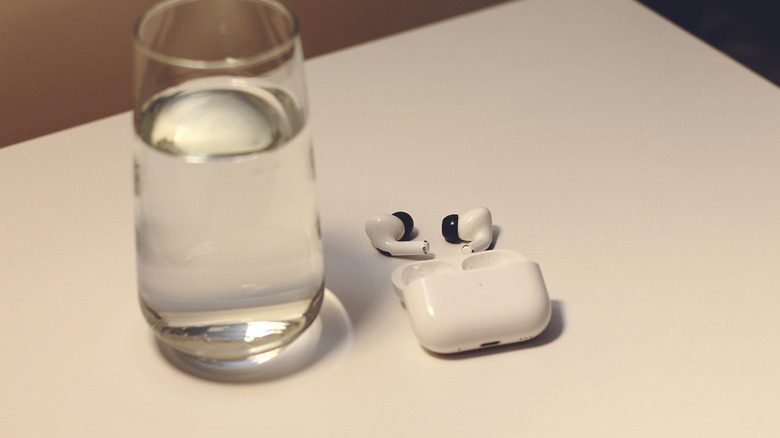
Physical obstruction is not the only cause behind poor microphone quality on AirPods. Network instabilities may sometimes impact audio quality on Bluetooth accessories. Assuming you’ve already tried to restart your AirPods by putting them back in the case, it might be a good idea to also restart your iPhone, iPad, or Mac. For a quick soft network reset, toggle airplane mode on and off. If this fails, navigate to Settings > Bluetooth, tap the tiny “i” button next to your AirPods model, and tap “Forget This Device.” Pair your AirPods again and check to see if this solved your microphone issues.
By default, the AirPod that has fewer obstructions and a better connection will automatically be selected for microphone use. However, Apple lets you manually pick which AirPod’s microphone is always used. You can play around with these settings to find an optimal setup. Although modern electronics are designed to handle a fair amount of wireless traffic, network interference caused by other devices could also affect your AirPods’ connection with your iPhone.
AirPods continually receive firmware updates that bring new features, but more importantly, those that squash bugs. There’s no direct way to update your AirPods via your iPhone or Mac. To force updates, place your AirPods in their charging case and connect them to a charger. Bring your connected iPhone, iPad, or Mac close to your AirPods and leave them be for a while.
How to reset your AirPods
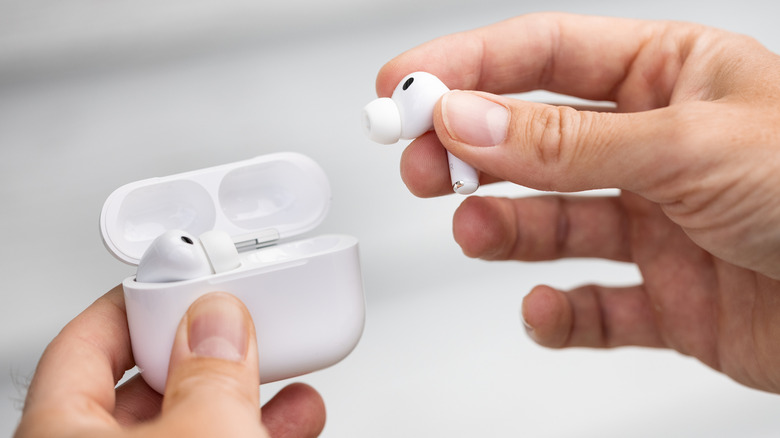
If you’ve thoroughly cleaned your AirPods and have attempted common troubleshooting steps, all to no avail, it’s worth performing a factory reset as a final resort. Depending on which model you own, the steps to reset your AirPods may vary slightly. For AirPods and AirPods Pro that have a physical setup button on the case, start by tapping “Forget This Device” in your iPhone or iPad’s Bluetooth settings. Next, with the AirPods still in the charging case and the lid open, press and hold the setup button at the back for 15 seconds. The status light should flash amber, then white.
If you own AirPods 4 or AirPods Pro 3, you won’t have a physical button. Instead, setup and pairing are handled by a capacitive touch sensor on the front. Once you’ve forgotten your AirPods on your device, with the lid open, double-tap the front of the case. Double-tap again when you see the status light flashing white. Double-tap a third time when the light flashes faster. You should see the status light flash amber, then white — this signals that your AirPods have been successfully reset.
To reset AirPods Max, press and hold the noise control button and Digital Crown for 15 seconds until you see a similar flashing pattern. If all else fails and you suspect your AirPods may have been physically damaged, then a quick visit to an Apple-authorized service center can help diagnose the issue more quickly.