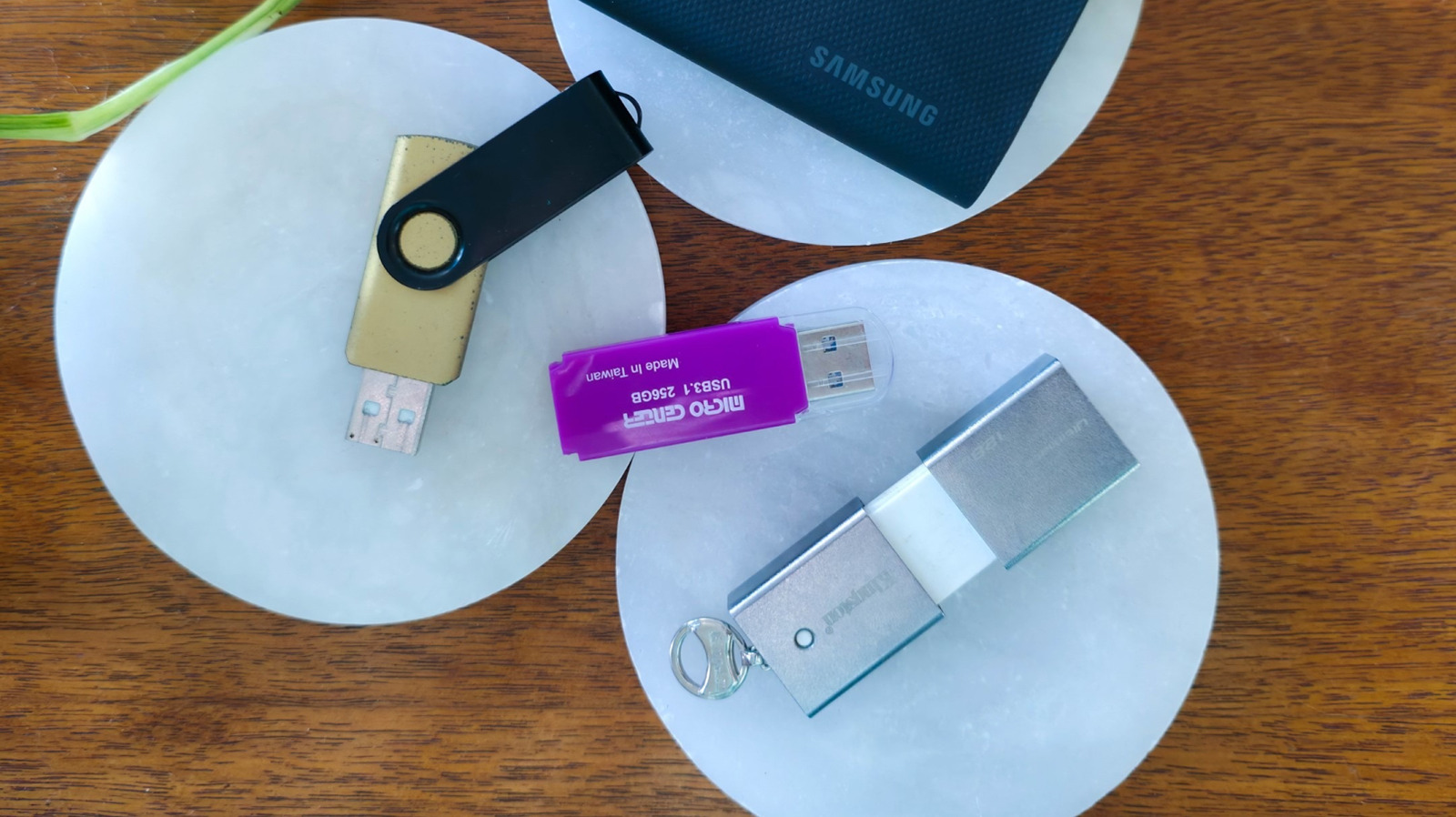
Most people have by now accumulated a collection of USB drives over the years. However, no digital storage medium lasts forever. Once a USB drive is three to five years old, it is a mature drive, and it should be put to use for less intensive tasks after it ages out of that band. The total lifespan of a USB flash drive is about a decade. Of course, there are gradients of quality to consider.
An expensive, ruggedized SSD is likely to use higher-quality flash memory than a thumb drive from the bargain bin at Walgreens and should last far longer before experiencing any issues. But many people still hold onto flash memory well beyond its prime, regardless of quality. Even tech aficionados aren’t immune. There may be many reasons why you can’t bring yourself to part with your old jump drives, portable hard drives, and SSDs, but you should be aware that they are no longer safe to use for certain purposes.
There are a number of things you should never trust an old USB drive to handle; instead, use a new, fast, and reliable USB-C flash drive or SSD. That ancient USB drive you stored your old tax records on and left in a drawer? It might already have corrupted those crucial documents beyond recovery. The SSD with that video of your firstborn child’s first steps? The passage of time will render both the video and its subject unrecognizable. So, here are five ways we would never reuse old USB drives and why you shouldn’t, either.
Never use old USB flash sticks to store important data
You should, in general, abstain from keeping only a single copy of your important data regardless of where it’s stored, but that advice is even more important in the context of an old USB storage drive. Even a brand new, top-of-the-line SSD can potentially fail or become corrupted, but the odds of failure increase dramatically as a storage drive ages. The older a drive is, the more write cycles (files stored and deleted) it is likely to have endured. You can think of this like wear and tear. The more write cycles, the greater the potential for instability. Files like your wedding album or important tax documents should never live on a flash drive alone. You should always make sure they’re stored in at least one other place.
Redundant copies may require a bit of extra work, but if one of your storage solutions suffers an outage or gets lost, you’ll be grateful you spent a few minutes copying your irreplaceable data. However, you should also be aware of the trade-off between preservation and security. For data that’s valuable to you but not sensitive (for instance, that wedding album), it can be a good idea to keep three copies: one on your computer or phone, one on an external drive, and one in the cloud using a service like Dropbox or Google Drive. However, if the data is sensitive (for instance, a passport, ID, or financial data), you may want to eschew the cloud in favor of physical drives you can keep an eye on personally.
Never use old USB drives for long-term storage
Along the same lines, you should never use an old flash drive or hard drive for long-term data archival. On average, the lifespan of an HDD is about three to five years, while that of a flash storage device is about the same. That’s because flash storage of the kind used in thumb drives, SSDs, SD cards, and so on stores data by holding a small electrical charge in the transistors. Since all computers rely on binary code — ones and zeros — the relative positions of the trapped electrons are what tell a computer whether it should read a one or a zero. The electrons remain trapped regardless of whether the drive has external power, but no charge can hold forever. Over time, some of those cells lose their electron memory, which can lead to data corruption. This is often referred to as bit rot or data rot.
A drive that is already experiencing degradation or data rot will lose data more quickly when it is not connected to a computer. Immediately after writing a file, that file will be accessible. But stick the USB drive in a drawer for a few weeks, and you may find that same file unrecoverable when you plug it back into your computer. So, if you were planning to store your critical documents or media on an ancient USB drive and throw that drive in the safe, you’re much better off copying them onto a brand new storage device instead. Even so, you should still make sure the drive works by checking it every so often and replacing it every three years at a minimum.
Don’t live boot an operating system from an old USB
One of the niftiest uses for a USB drive is live booting an operating system. Every computer stores its operating system on a storage drive, which means you can BYOOS — bring your own operating system — by writing it to a flash drive or SSD and plugging that storage device into an existing computer. You can then turn nearly any computer you come across into “your” computer by booting the OS off of your USB drive. This is also a handy method for testing whether a PC is functional, repairing an OS installation, or quickly installing your OS of choice on a new PC. A drive with a bootable operating system installed on it is referred to as a “live USB.”
However, it’s a bad idea to use an old USB drive for live booting, especially if you rely on it as your main computing environment. This is because of the same issues we discussed above. Whether you’re storing files or booting an OS, older USB drives are prone to data rot. Your entire OS could become corrupted without warning. But you’ll also run into another issue: storage speed.
USB 3.0 SuperSpeed at its base data transfer rate of 5 Gbps can create a bit of a bottleneck when live booting on newer hardware, but many old USB drives use even older USB 2.0 specifications that will significantly slow performance. Lastly, old USBs tend to have smaller storage sizes — often less than 1 GB if they were released much more than a decade ago. Depending on the operating system, you might be able to scoot by with 8 GB, but 16 is really preferred in order to ensure you have some storage headroom for optimal performance.
Live file editing is a job for newer SSDs
If you’re often working with files, such as editing documents across multiple computers or editing video shot with a professional-grade camera, you may be accustomed to live file editing from a USB drive. That means you’re editing the files while they’re still stored on the drive without first moving them onto your computer. However, live file editing is an easy way to stress out your USB drive, and you should therefore abstain from using an old drive for that purpose.
A few edits on a Word document may not be too problematic, but over time, the risk compounds. It’s a bit like going outside without sunscreen, in that the more you do it, the bigger the risk you run. One reason you shouldn’t buy used USB drives is that you don’t know how heavily they were used.
Video editors in particular may choose to live edit from a USB drive for two reasons. First, video files are often extremely large, so there isn’t enough space on the computer’s internal drive for multiple projects. Second, video editing wears out a drive more quickly than editing lightweight files, so using external SSDs prevents the internal drive from wearing out. These are valid justifications, but only when editing from newer drives. When you’re using an old USB drive that may already be nearing the end of its lifespan, heavy write cycles from video editing could be the nail in its coffin.
Don’t use old USB drives for console or PC storage
It’s tempting to give an old USB drive a second life as extra storage for your computer or gaming console, especially if it’s a high-quality drive that you can’t bring yourself to part with. However, it is a bad idea to do so for many of the same reasons we’ve discussed in other contexts. Old USB storage devices are more likely to fail, and they are more likely to use older, slower standards that will become major bottlenecks in your workflow. But there are other issues with using an old USB thumb drive or SSD as a working drive.
For flash drives in particular, which are designed for quick file transfers and semi-infrequent use, you are upping the chances of failure when you leave them plugged into a computer for days, let alone months or years. Voltage issues and overheating can happen when a flash drive is used as long-term computer or console storage, and that’s all the more true the older your drive is. Constant writes cause flash memory to heat up, which is why so many professional-grade portable SSDs include a heat sink. High-intensity tasks like video game storage put even more stress on a drive.
SSDs can often be used as computer or console storage, provided they are using a newer generation of USB — preferably at least USB 3.2 Gen 2 for 10 gigabits per second (Gbps) transfer speeds on modern hardware while maintaining broad compatibility. Older SSDs should be used with caution, and you should make sure there is an intact heat sink attached. Test it using a benchmarking suite like CrystalDiskMark on Windows before use, and don’t rely on it for intensive tasks if possible.