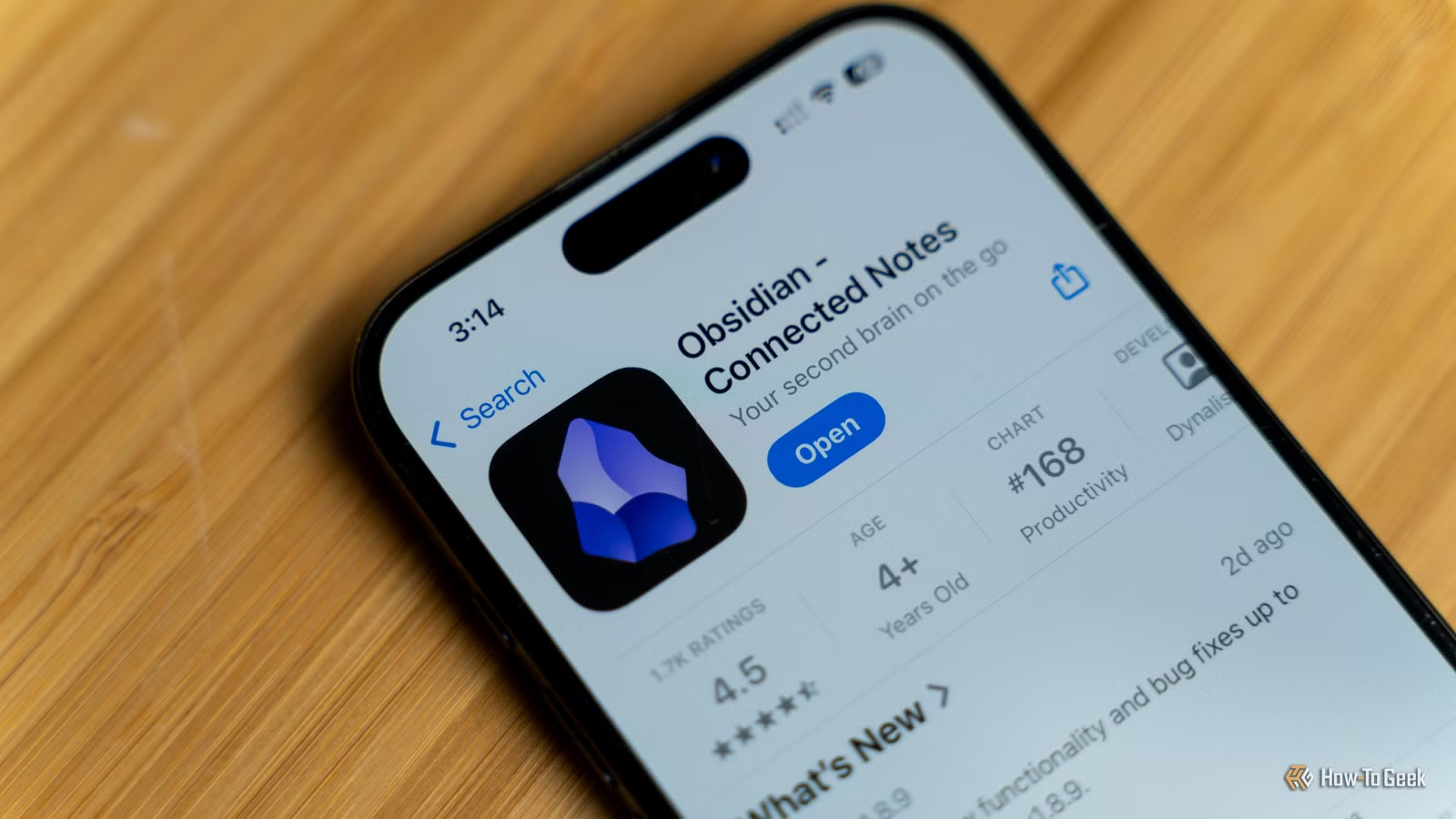
A premium Obsidian subscription gives you access to Obsidian Publish, a platform where you can publish Obsidian vaults as websites. You can write in Markdown, hit publish, and the platform will automatically publish it as a website. However, if you don’t want to buy the subscription, there is a way to get this exact feature for free.
Digital garden converts your vaults into websites
It’s free, open-source, and endlessly customizable
The Obsidian community has built some truly amazing plugins for this equally amazing markdown app. Some of them even replicate the many paid features you get for the premium Obsidian subscription. You can sync notes across devices for free with the Remotely Sync plugin, for example. You can also publish Obsidian vaults as websites using a plugin called Digital Garden.
All you need to do is install the plugin, set it up once, and just click a button on the sidebar to publish or update your website. The vault will look like any normal vault. You can create links between notes like you usually would. Format your notes in Markdown and publish them as static webpages.
The note titles become the web page titles. You don’t even have to publish all the notes in the vault because only pages with a special header tag are candidates for publishing.
Two ways to publish your vaults
The easy way and the self-hosting way
Before you get started, you have to pick one of two paths.
The creator of the plugin provides a platform called Forestry.md where you can host the website for free. It’ll also provide you with a free domain name. The address would look something like yourblog.forestry.md. Pretty neat. All you need to do is sign up for Forestry.md and grab the random key it generates (more on that in a few). Plug that key into Obsidian, and it’ll connect with your Forestry.md account right away.

It takes a minute or two to sign up and get the key. You can have your website live within a few minutes. However, Forestry.md is a freemium service, so some features are locked behind a paywall.
You can change the theme, website name, and publish as much as you want, but it’ll ask you to upgrade for things like removing the Forestry.md footer, previewing changes before committing them, or using custom domains. There’s a 100MB storage limit too (which is plenty for text-only notes.)
If you want absolute control, you can host and deploy the website yourself. This setup will take a bit longer, and some work, but you will have total control to make your site look and behave exactly how you want. You can use GitHub to create a new repo and deploy it on Vercel or Netlify. It’s also completely free of charge. The official repo for the plugin explains the self-hosting process in detail.
Pick Forestry.md if you want an easy setup. Self-host with GitHub if you want to tweak things and don’t want to pay for features like custom domains. If you want my recommendation, I think it’s a good idea to start with a free Forestry.md account and give it a try. You can always move your site to GitHub later if you feel the need to.
Get your Obsidian site up and live
It only takes a few minutes
I suggest creating a new vault for this project, but you can just as easily publish an existing vault. Open Settings > Community plugins. You might have to turn off “Restricted mode” if you haven’t installed community plugins before. Look for the “digital garden” plugin in the search bar and install it. Once it’s installed, click Enable and then Options.
Click the drop-down menu next to Publish Platform and select Forestry.md. Then open your browser and follow this link to the Forestry.md website and sign in with a new account. You can use GitHub to log in, if you have it. Under the Overview tab, you’ll see a Reveal Garden Key button. Click it and copy the text key it generates.
Now back in the Digital Garden options, you’ll see a Garden Key field. Paste the key you copied here and try connecting to the platform. It should connect right away and your base URL should show up in the Digital Garden settings. This is the homepage of your website.
At this point, you can start publishing your notes. You can customize it first if you like. You can change the site name under the Site Settings tab on the Forestry.md dashboard. If you don’t, the website title (not the domain name) will default to “Digital Garden.” You can also choose from some 400 free themes.
Publishing your first note
Just include a text tag and hit publish
Publishing notes is pretty straightforward. The title of the note becomes the title of the page. Include this tag at the top of the note, so the plugin knows you intend to publish it as a webpage.
---
dg-publish: true
---
You’ll want one of your notes to be the website’s homepage. In that main note, include this extra tag. Don’t tag multiple notes with the dg-home property because the plugin only publishes a single homepage.
---
dg-home: true
dg-publish: true
---

To link pages and create backlinks, just type [[ to create a link like you normally would. Alternatively, you can highlight text, right-click, and select “Add Link.” All other formatting and linking features work normally too.


- OS
-
Windows, iOS, Android, macOS, Linux
- Brand
-
Obsidian
- Price
-
$4/month (Sync), or $8/month (Publish)
- Free trial
-
Free version available
Markdown is perfect for simple blogs, wikis, and portfolios
Your Obsidian vault can double as a CMS for your blog. It saves you the hassle of duplicating and reformatting your notes or documentation for the web.